Create Mosaic Art
Turn your favorite photos and papers into eye-catching mosaic designs! By cutting images into smaller pieces and arranging them together, you can create colorful patterns, striking designs, and unique ways to showcase your memories. The Mosaic Moments One Inch Grid Die makes cutting multiple small squares quick and easy, but you can also experiment with hand-cutting and different shapes to create mosaics that are uniquely your own.
Start with these Mosaic Pages
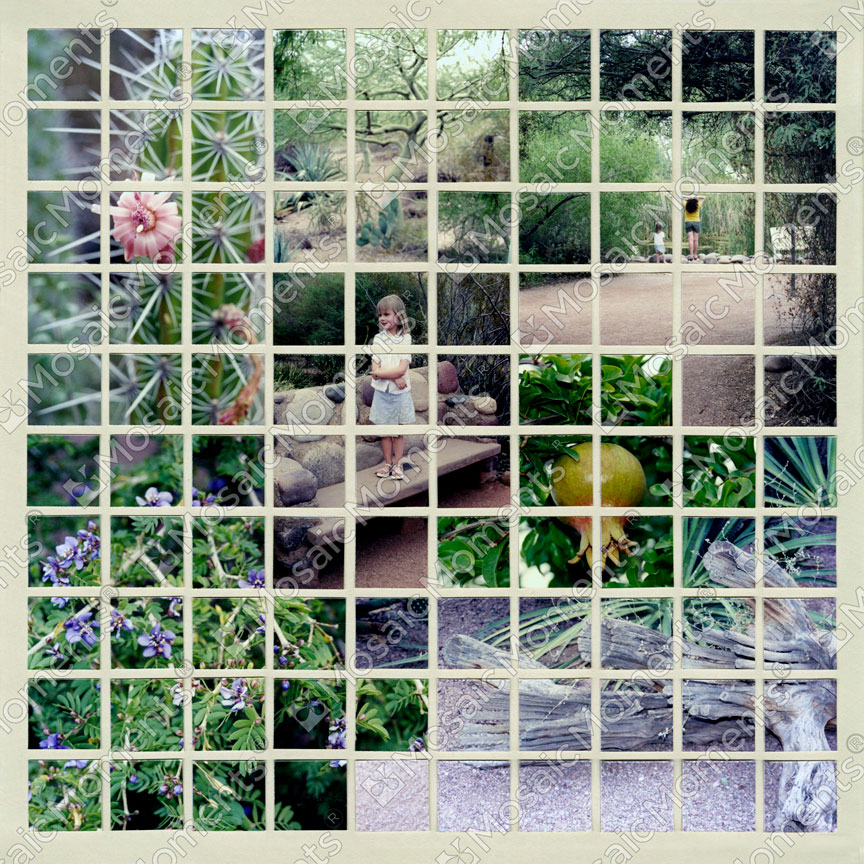
Pattern No. 154
You can make a simple mosaic - just one cut with the grid die and done!
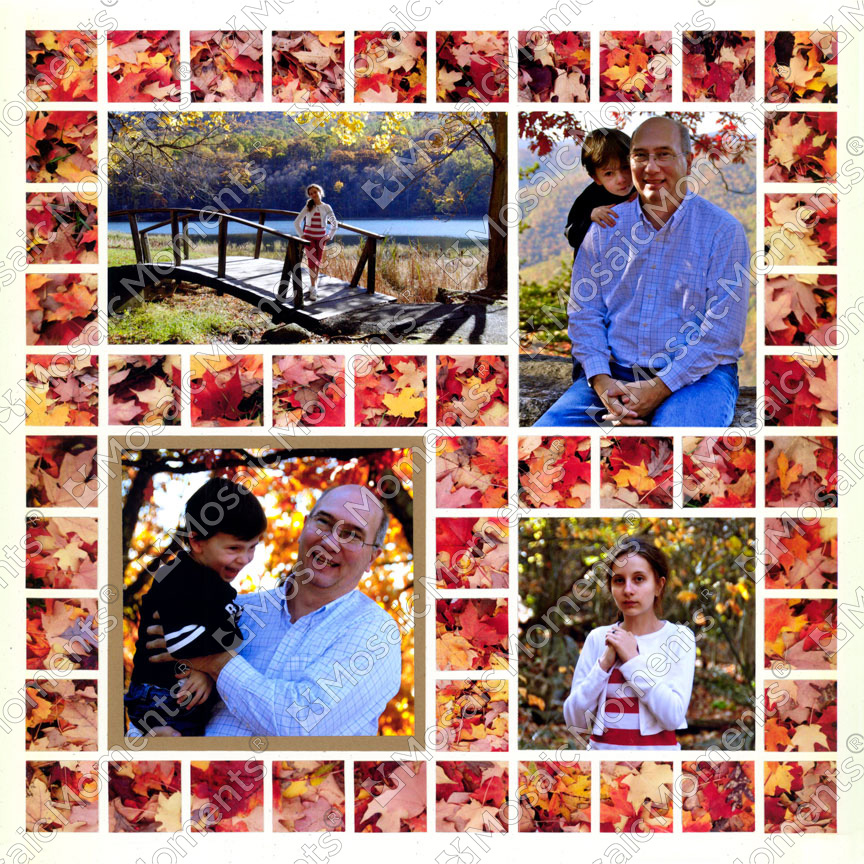
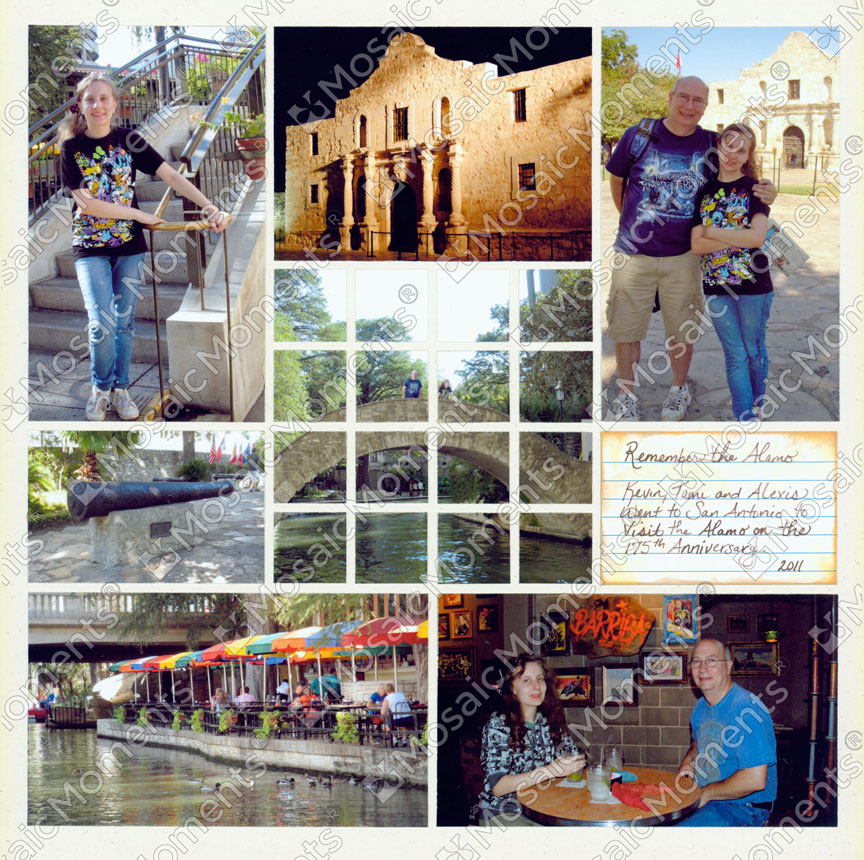
Pattern No. 262
You can start with detail photos for one of your first mosaic pages. This layout has photos of fall leaves. The benefit is you don't have to worry about keeping each square in order and you don't have to worru about cutting into subjects like people.
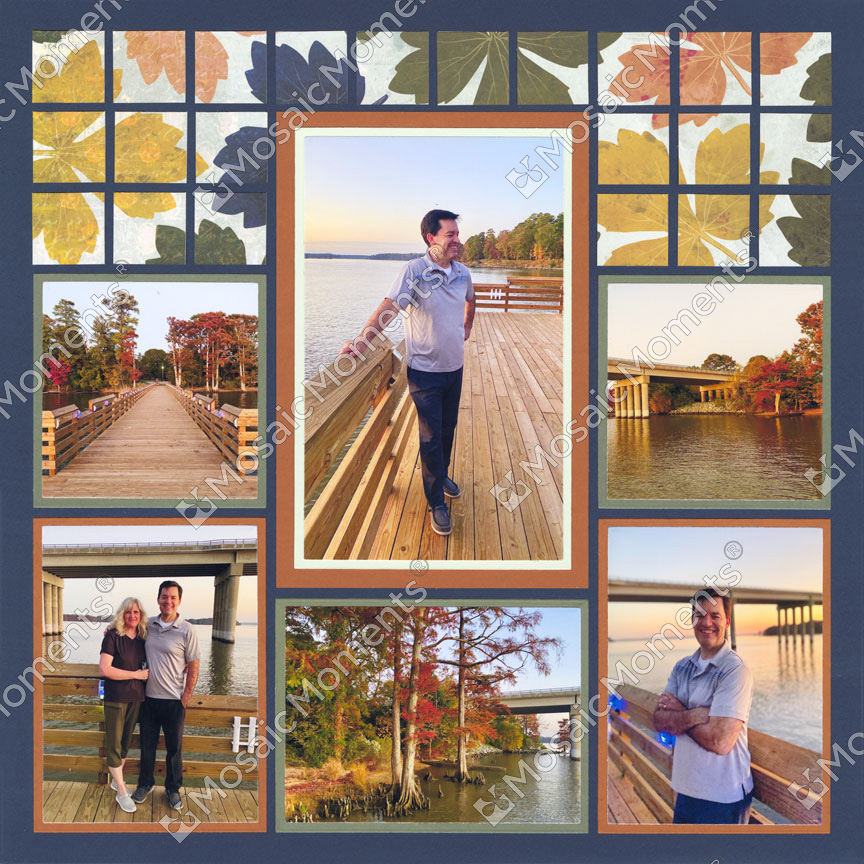
Pattern No. 1012
If you are nervous about cutting your photos, you could try cutting pattern paper for one of your first mosaic pages.
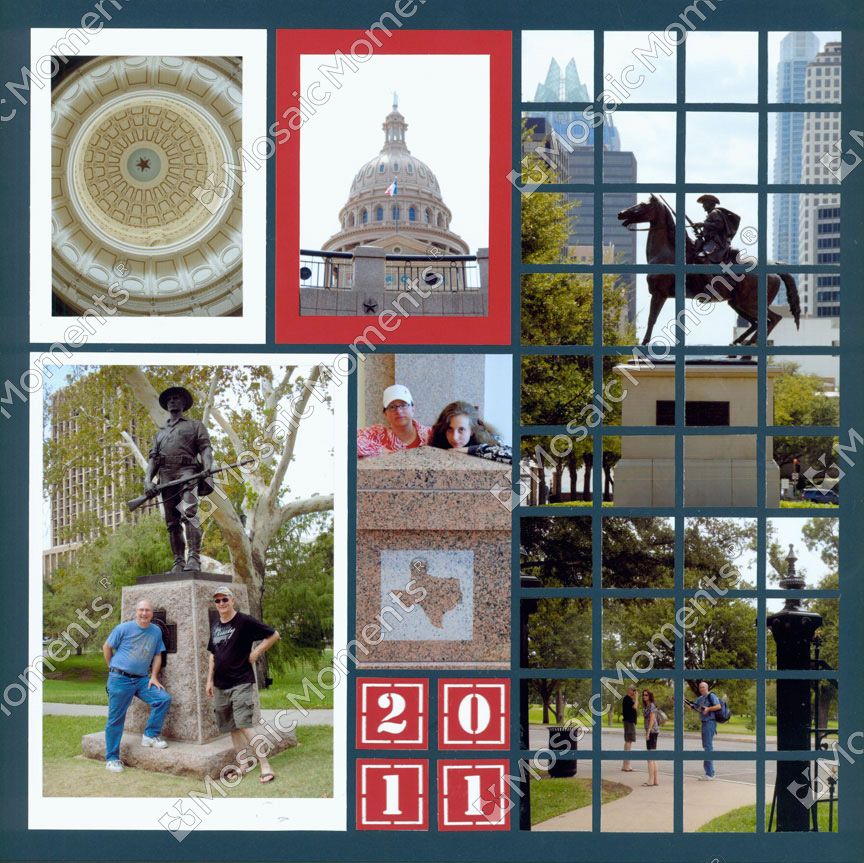
Pattern No. 729
You can easily create a mosaic column. The one above was made with two 4x6 photos placed in next to each other on the layout.
Create Beautiful Pages with Detail Photos
One of the easiest ways to create a fabulous Mosaic Moments® page is to use detail photos. These are photos of objects, textures, or small parts of a scene rather than a main subject like a person or animal.
Think flowers, clouds, brick walls, holiday decorations, or anything else that catches your eye!
Detail photos are especially beginner-friendly because they’re easy to blend together, making it simple to create a cohesive, eye-catching layout.
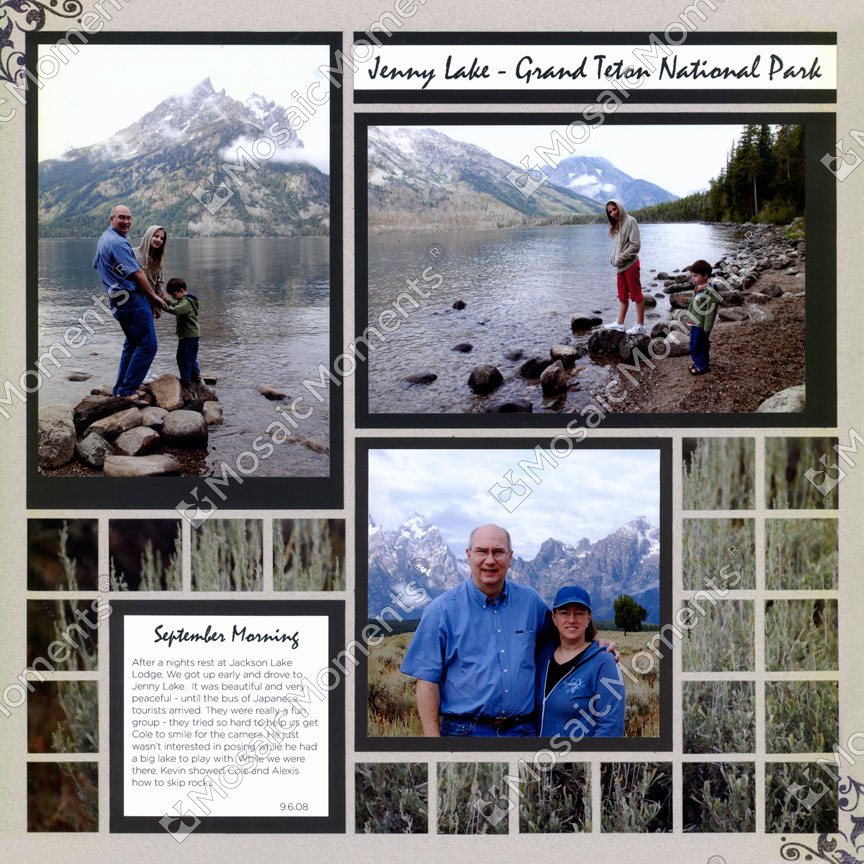
Pattern No. 268
While it may not be the most exciting detail, objects such as tall grass can turn into a unique mosaic layout.
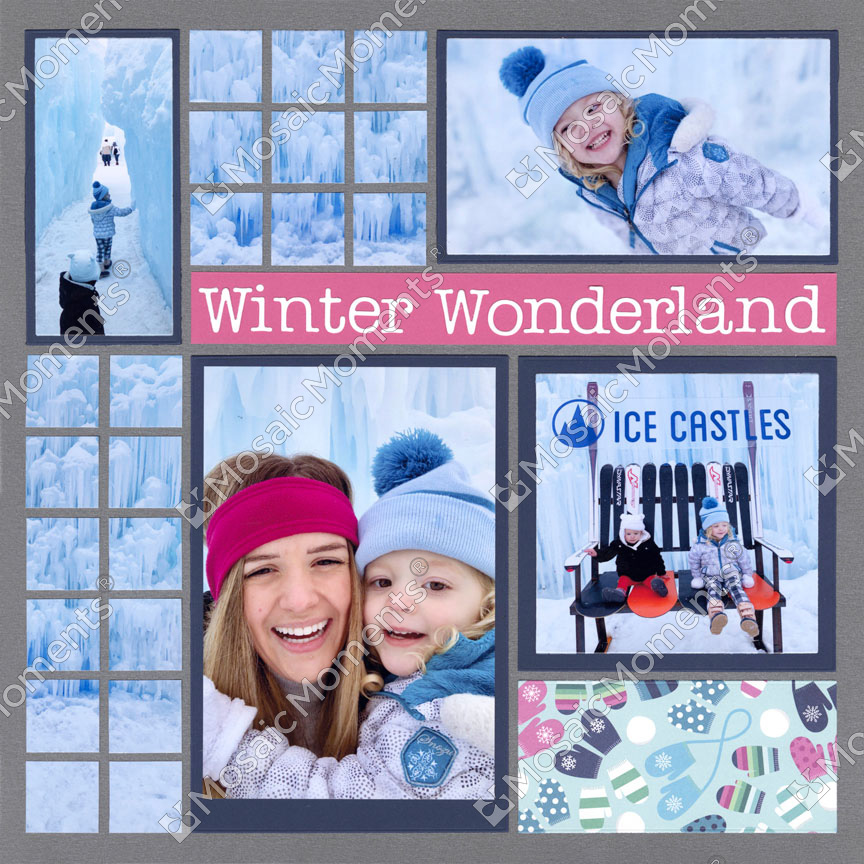
Pattern No. 137
Beautiful ice detail were used the mosaic sections. Tip: Make sure you use a Grid Paper that contrasts the photos you will cut into mosaic pieces.
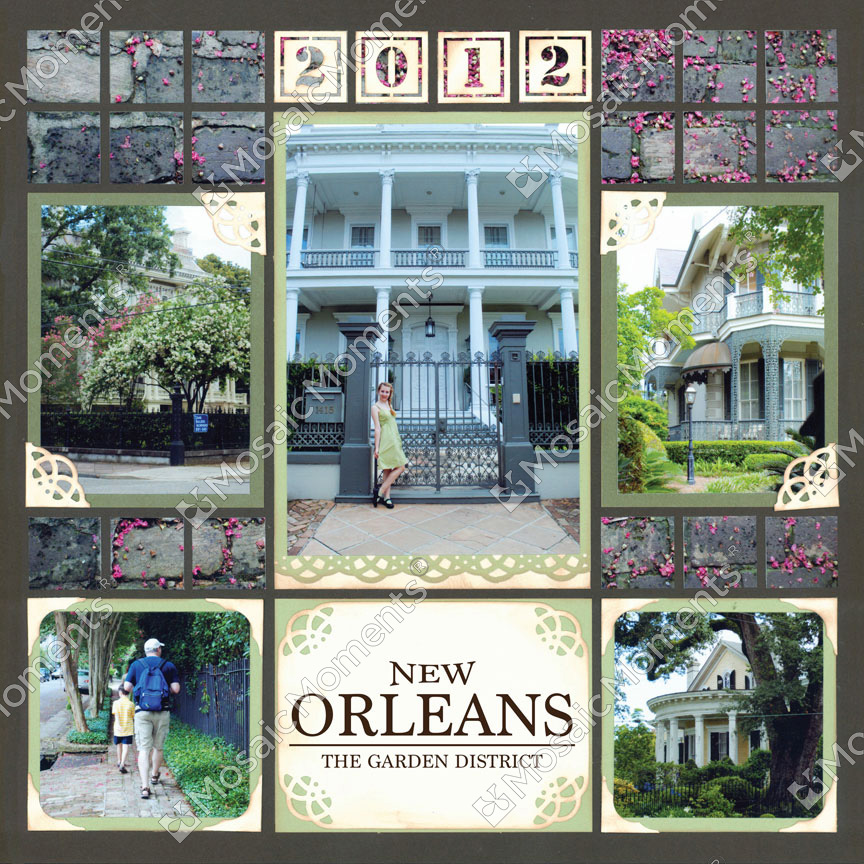
Pattern No. 118
When walking through a historic area, be sure to get a few photos of the unique walkways.
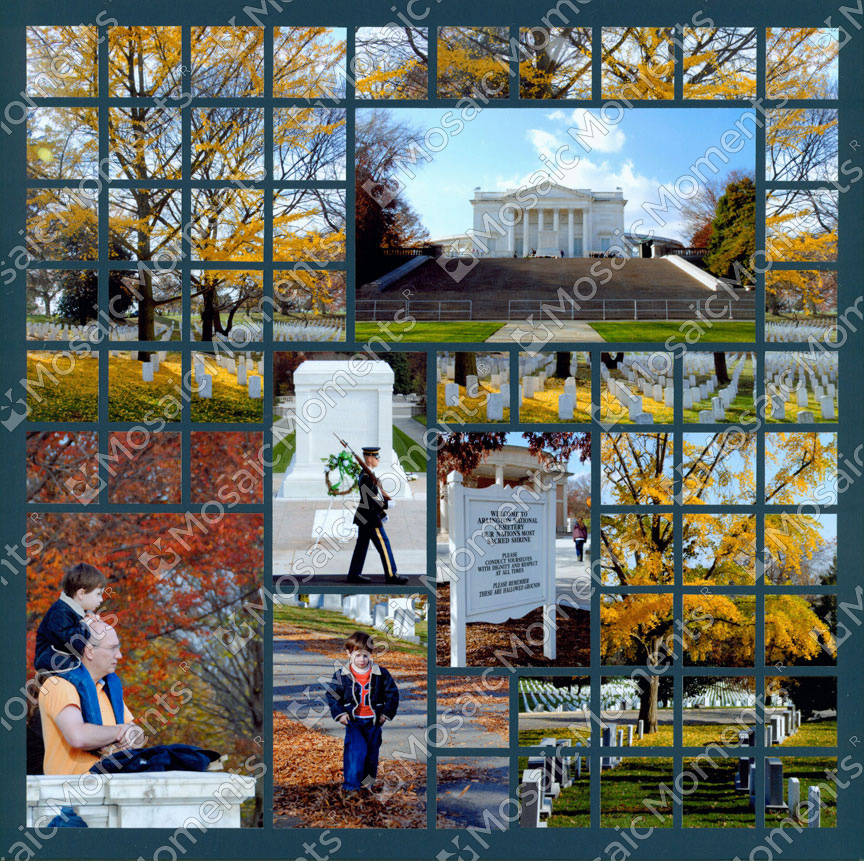
Pattern No. 692
Trees make wonderful mosaic pages especially during the fall season.
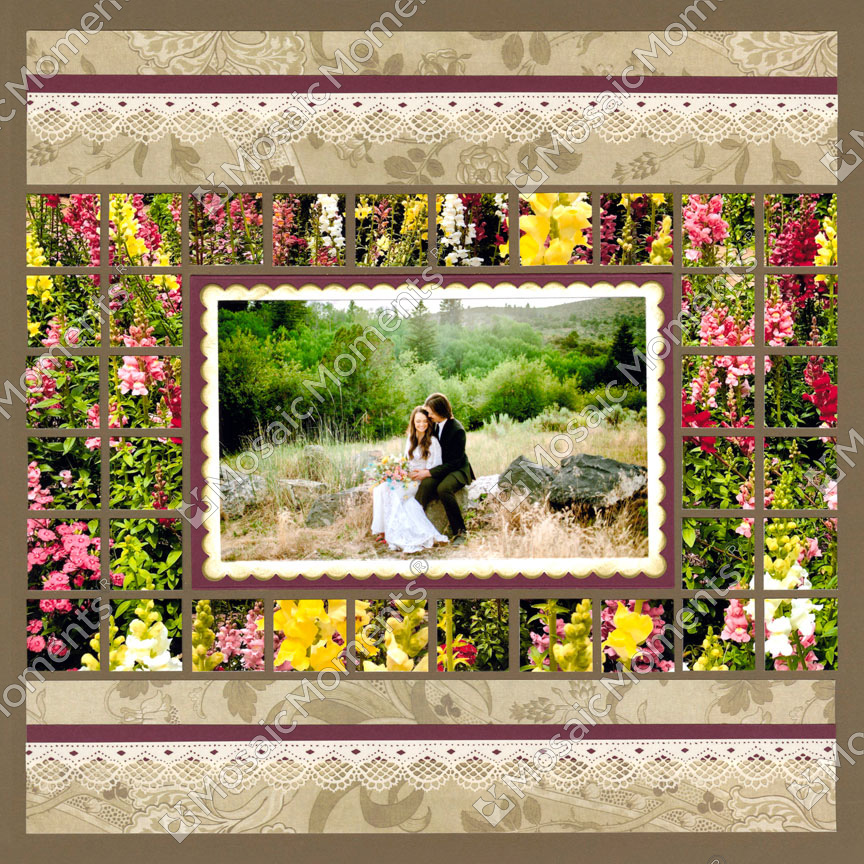
Pattern No. 419
Flowers are a very popular subject for mosaic layouts. They add wonderful pops of color and can be used on nearly every page theme.
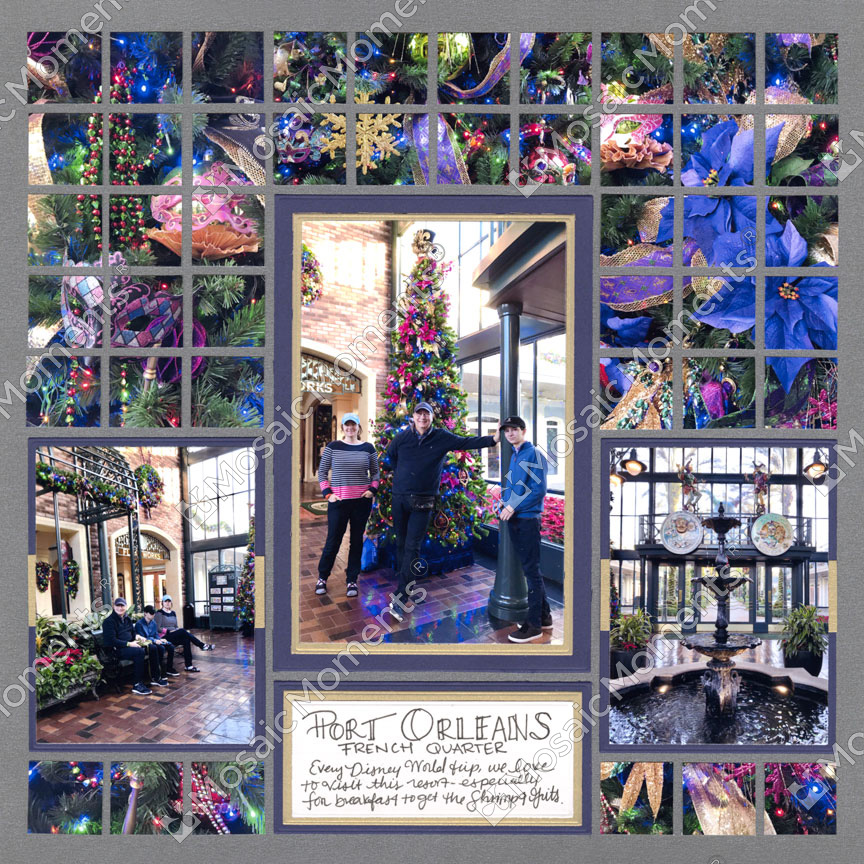
Pattern No. 367
These photos are ornaments on a tree. The holidays a great time to collect amazing photos for mosaic layouts.
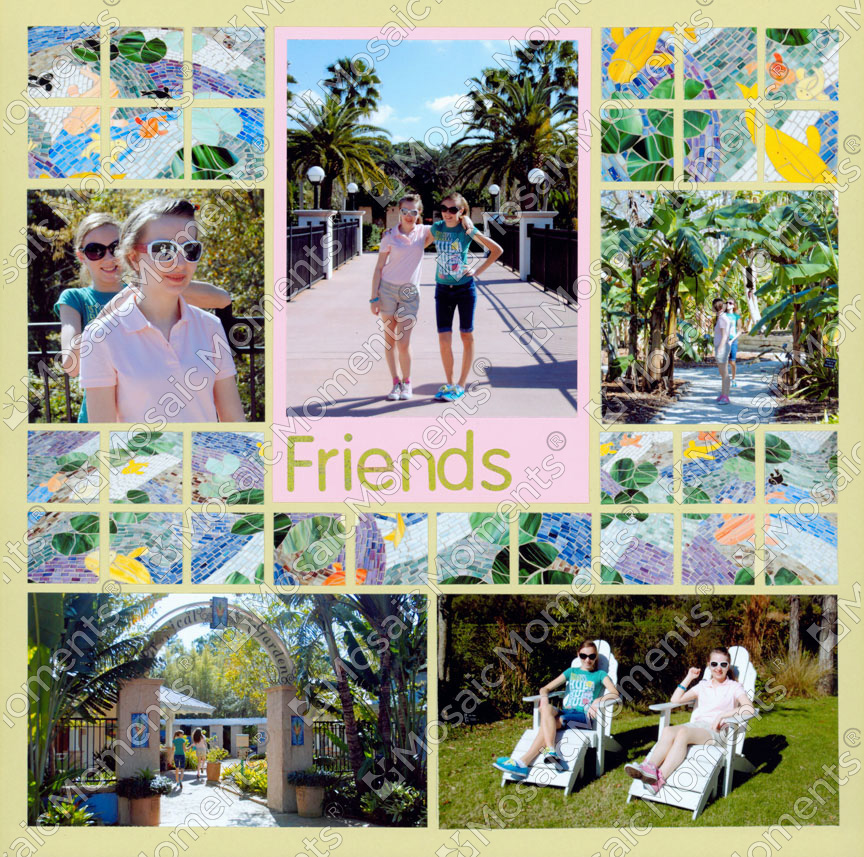
Pattern No. 157
Art such as mosaics or murals can create amazing layouts.
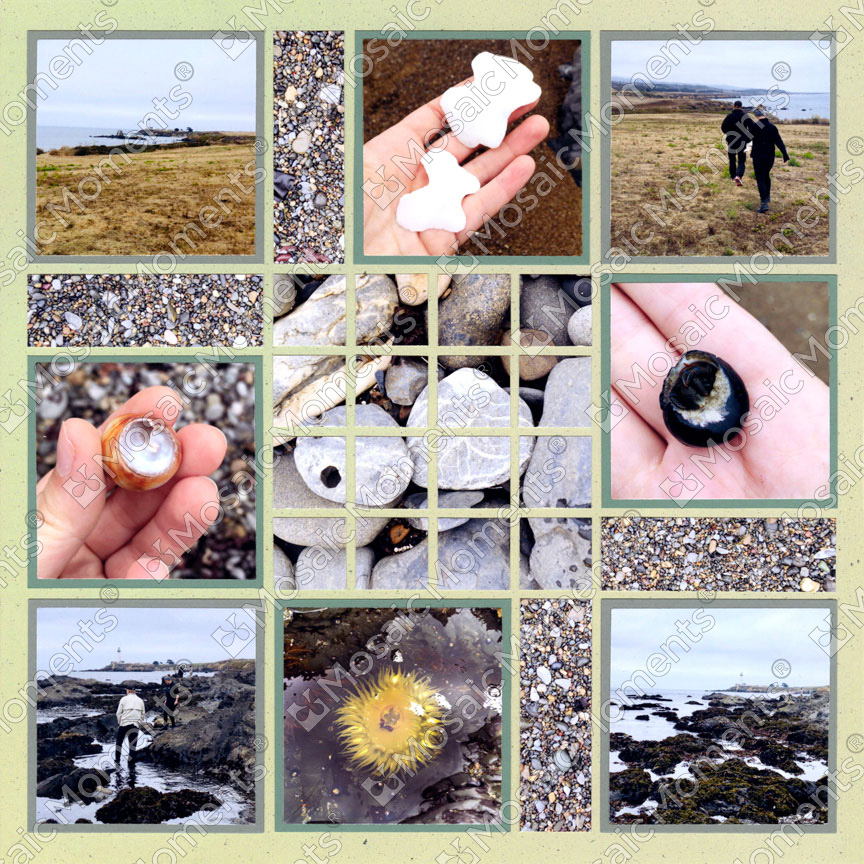
Pattern No. 792
Even something as simple as rocks can create a unique mosaic page.
Ready to Try Panoramas?
Once you’ve created your first mosaic pages, try making a panorama! These layouts combine two or more photos to capture a wider view of a scene. Even though each mosaic section uses a standard 4x6 photo, combining images lets you showcase much more of the scenery.
How to Take Panoramic Photos
-
Hold your camera horizontally and take a photo of one section of the scene.
-
Turn your body slightly to capture the next section, keeping the camera at the same height.
-
Continue taking photos until you’ve captured the entire view. Depending on the scene, you may need two to five photos.
You can also take photos vertically to create a taller panoramic scene on your page.
Take a look at these panoramic page ideas from our designers!
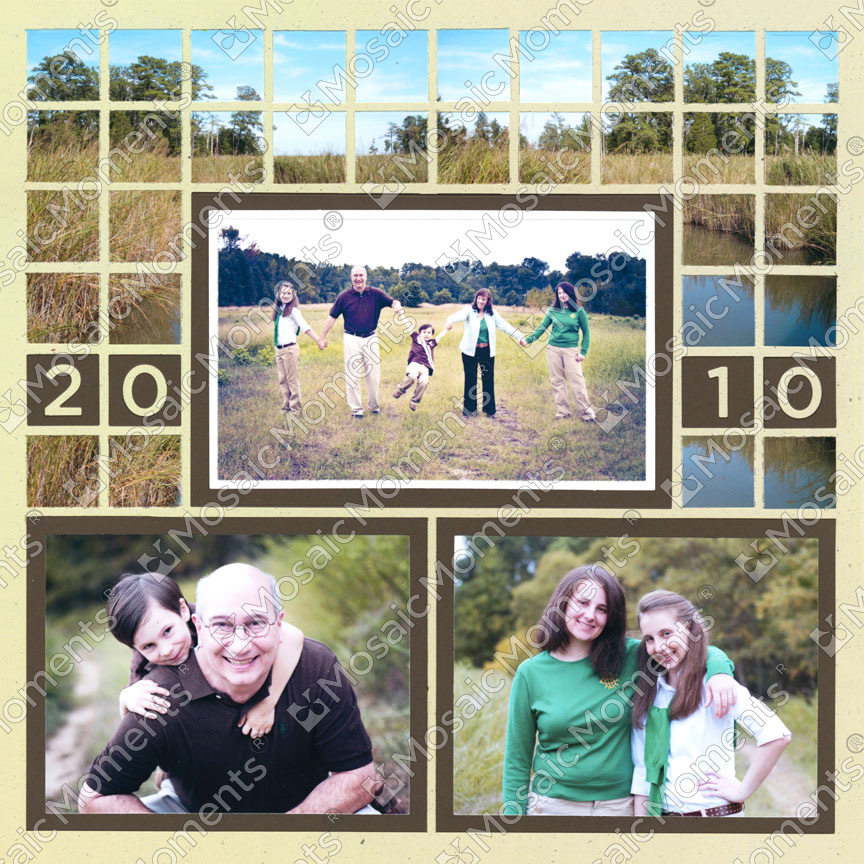
Pattern No. 399
Three Vertical 4x6 photos to fill the mosaic section.
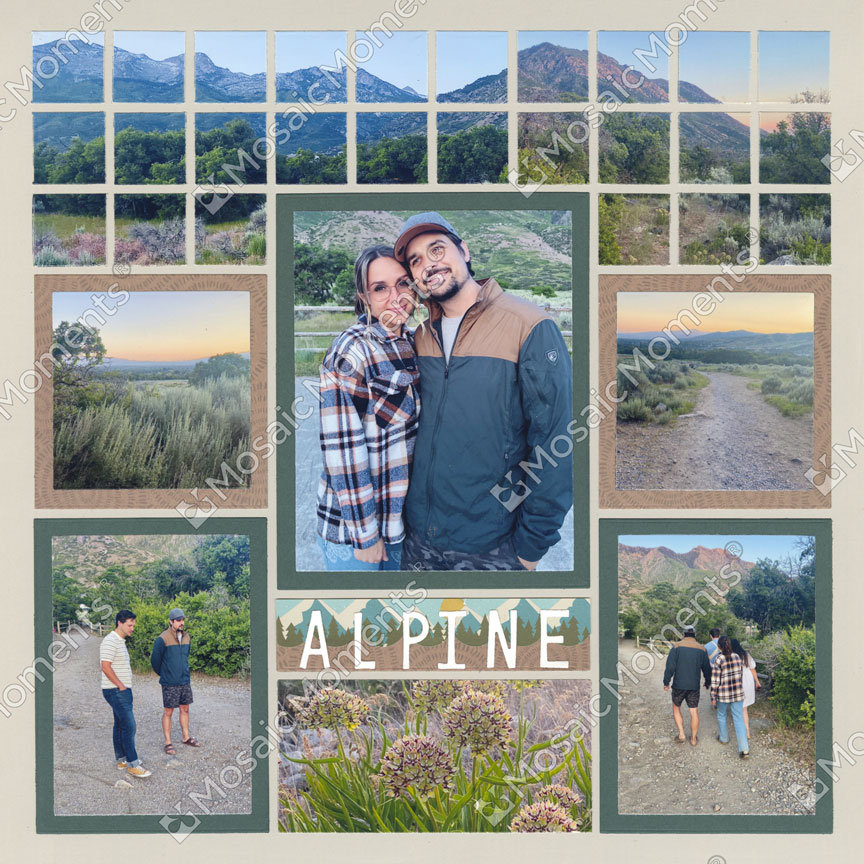
Pattern No. 1108
Two horizontal 4x6 photos were used to fill the mosaic section.
You can actually fill in the space with two photos not from the same scene. Because of the gaps in between each piece, they trick your entire into thinking it's the same photo.
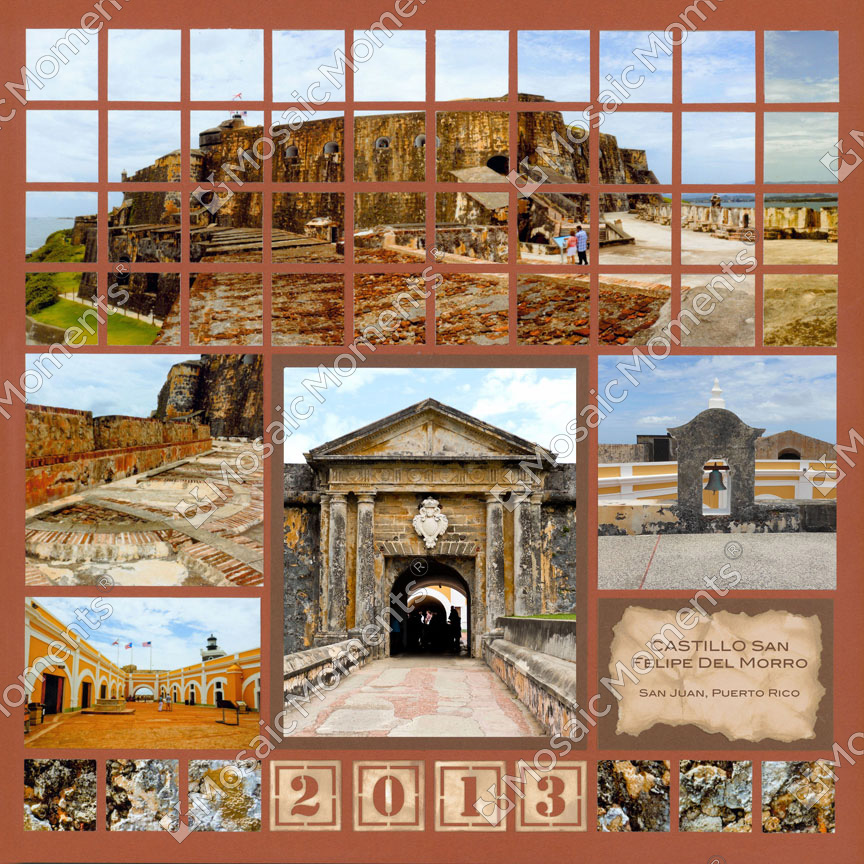
Pattern No. 198
Two horizontal 4x6 photos were blended together to feature this building.
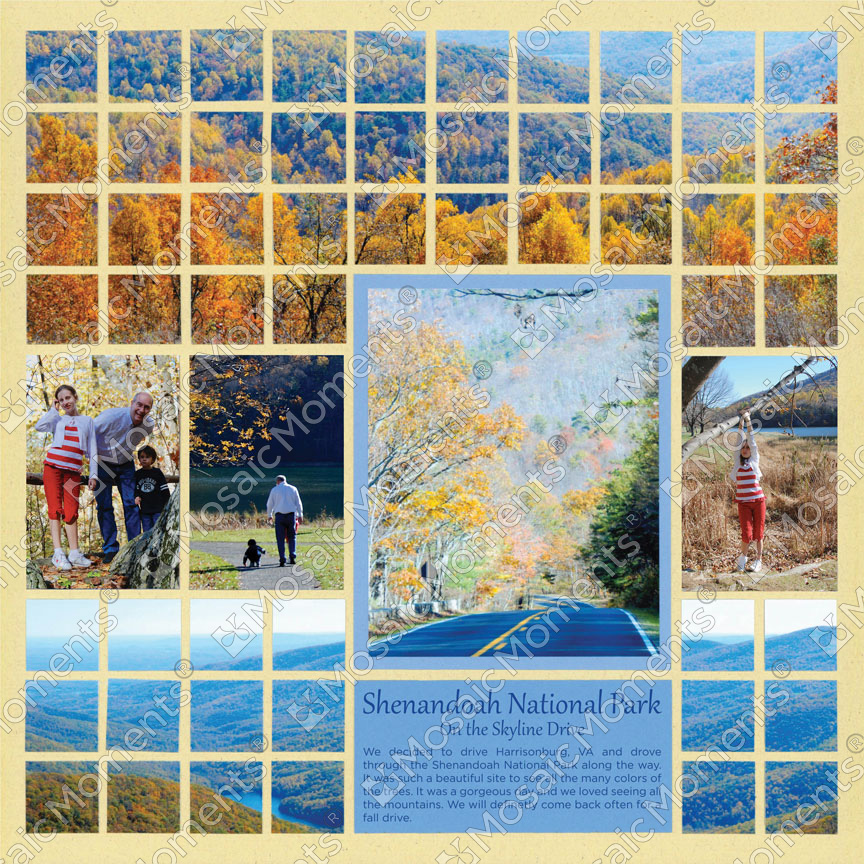
Pattern No. 148
For the top section, two horizontal 4x6 photos used to fill it in.
The bottom section was only filled in with one 4x6 horizontal photo. It might look larger due to the journaling block taking up part of the space.
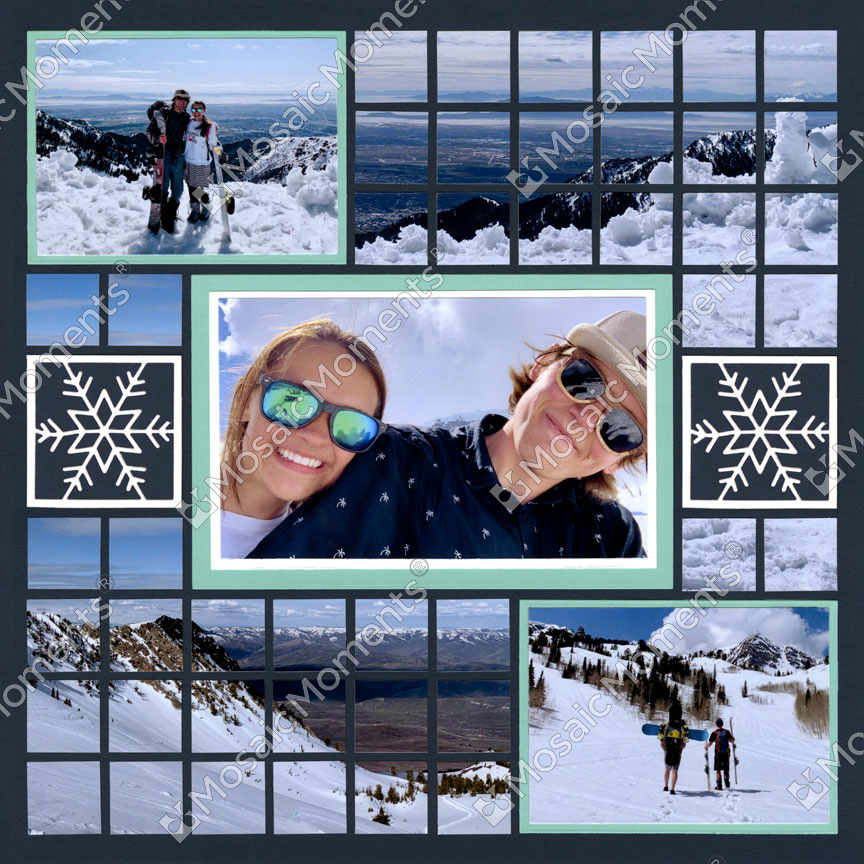
Pattern No. 445
Believe it or not - the mosaic sections were filled in with just two 4x6 horizontal photos.
Because of the gaps in between each square, it makes the photos seem much more grand since they are more spread out on the page.
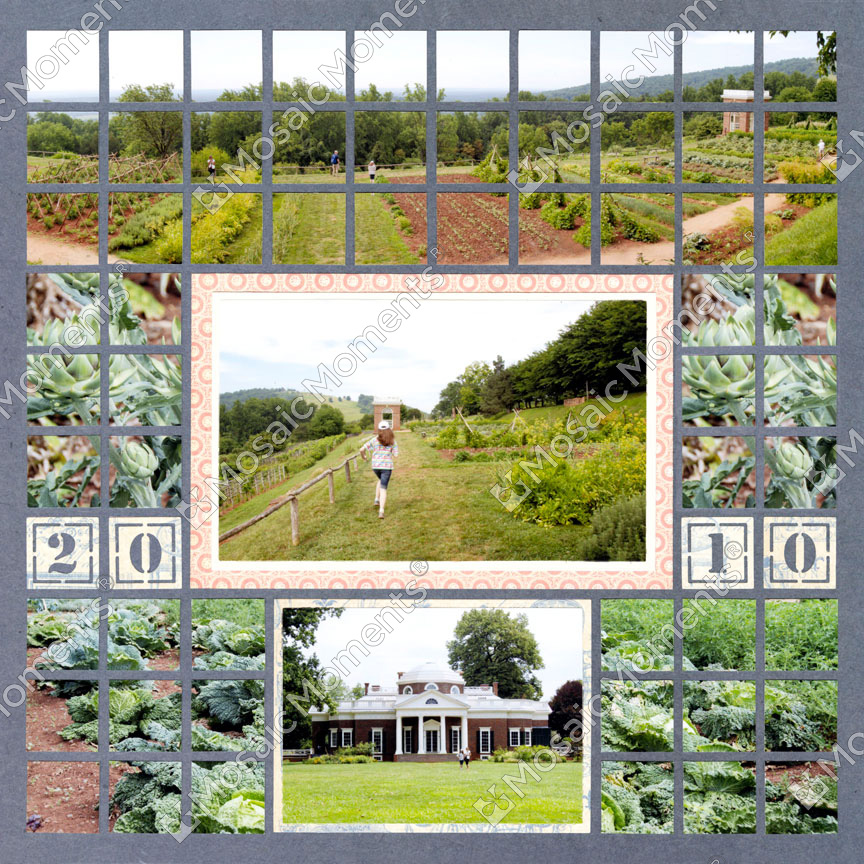
Pattern No. 232
The top section was filled in with two 4x6 horizontal photos.
The middle section was cut two photos - the same one repeated. You can print the same detail photo if needed to make a mosaic effect.
At the bottom of the page, the two sections were filled with one 4x6 photo cut into mosaic pieces.
Blend Your Photos Together
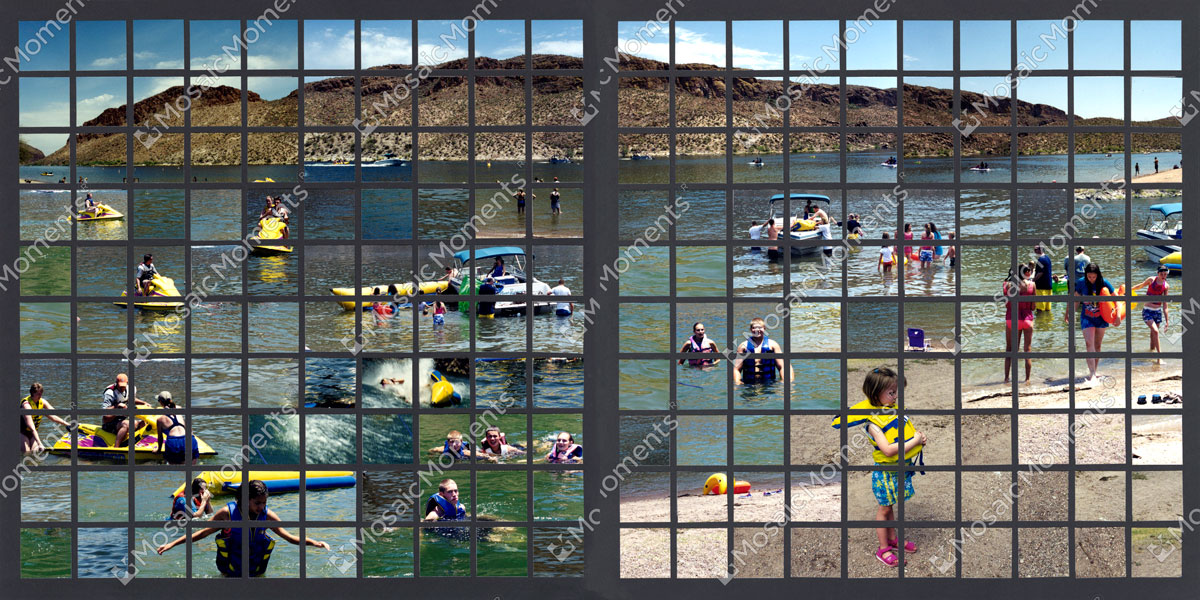
Turn part of your page—or even the entire layout—into one large piece of mosaic art! This is a unique way to showcase your favorite memories, and mosaic pages can make beautiful gifts, too.
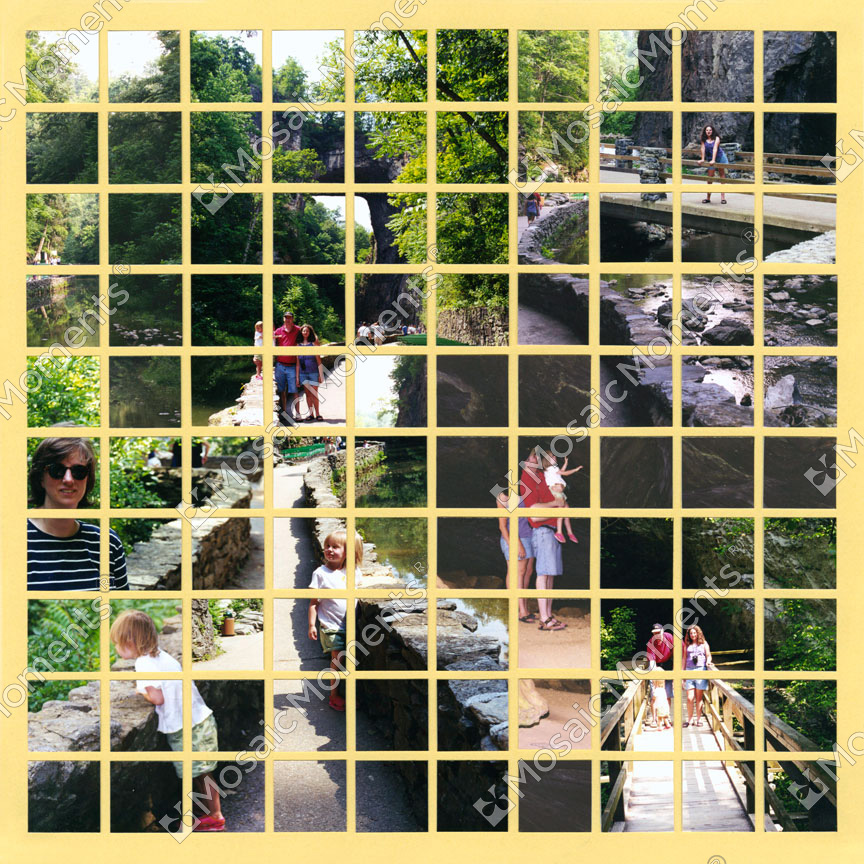
You can create this look using a technique called photo blending. By cutting two or more photos into smaller pieces and placing them next to each other, you can blend the images together so the finished layout looks almost like one continuous photograph.
Choosing Photos for Photo Blending
-
Look for similar lighting. Photos taken in similar lighting conditions will blend together more naturally.
-
Pay attention to faces. Avoid cutting through a person's face. Photos where a person's head fits within a single 1x1 square are often easier to work with.
-
Use close-up photos carefully. Depending on the subject, close-ups can be more difficult to blend. Photos with more surrounding scenery often give you greater flexibility.
How to Create a Mosaic Layout
-
Plan before you cut. Arrange your photos on the Grid Paper first to see how they work together.
-
Find the best placement. Move your photos around until the overall scene looks right to you.
-
Create a sense of depth. Try placing distant views toward the top of the page and closer views toward the bottom.
-
Choose your focal point. Decide which photo or part of the scene is most important, then build the rest of your layout around it.
-
Place important details first. Make sure the key parts of each photo are positioned where you want them before filling in the remaining spaces.
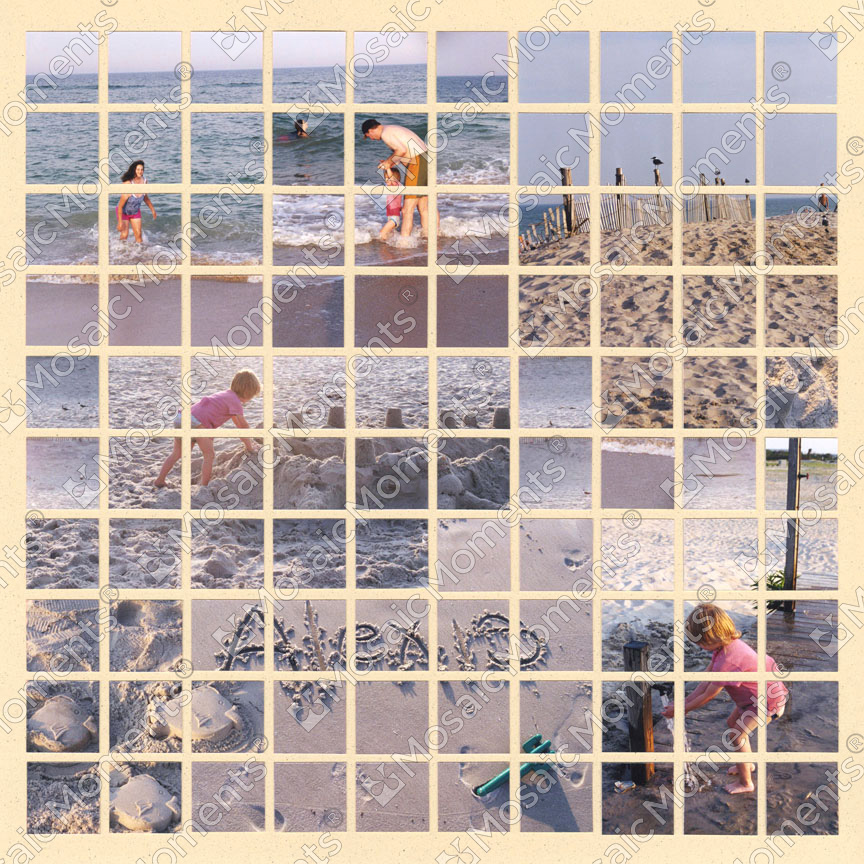
Pattern No. 295
You can create a beautiful effect like this. Take multiple photos of the same tree. Then print two or more 4x6 photos. After cutting each photo into squares, you can piece them together on the grid paper.
Add in Larger Blocks
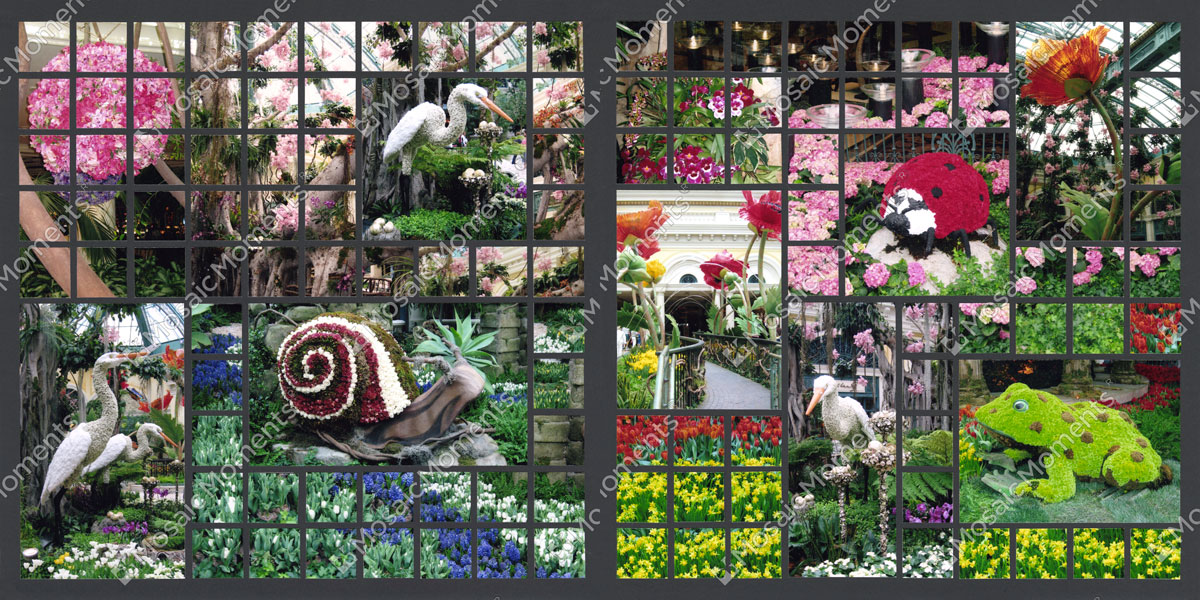
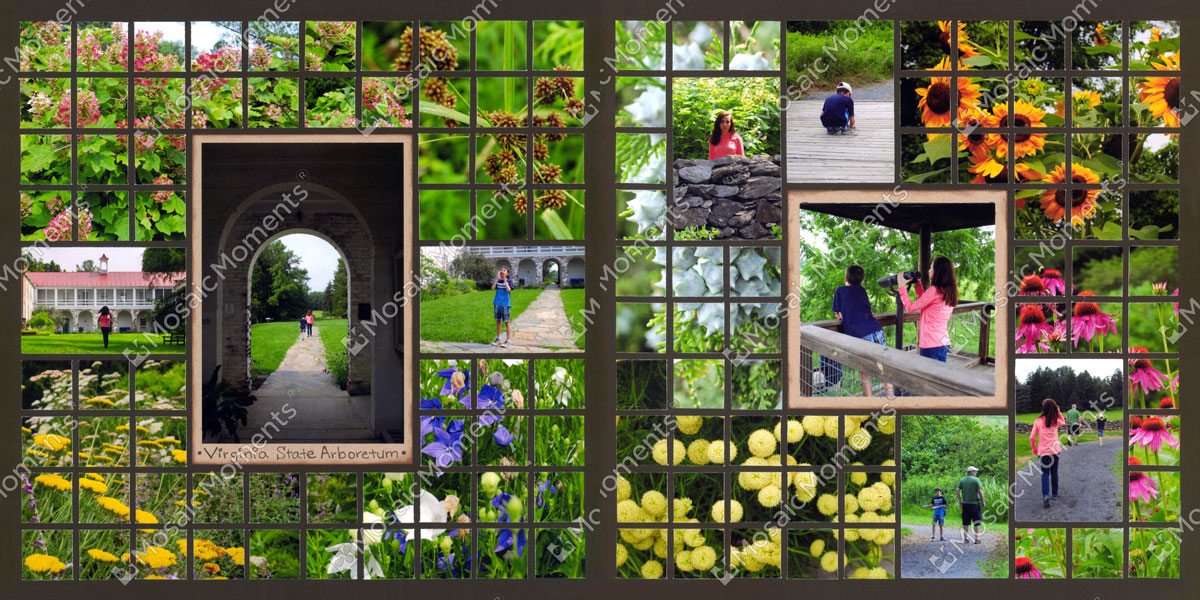
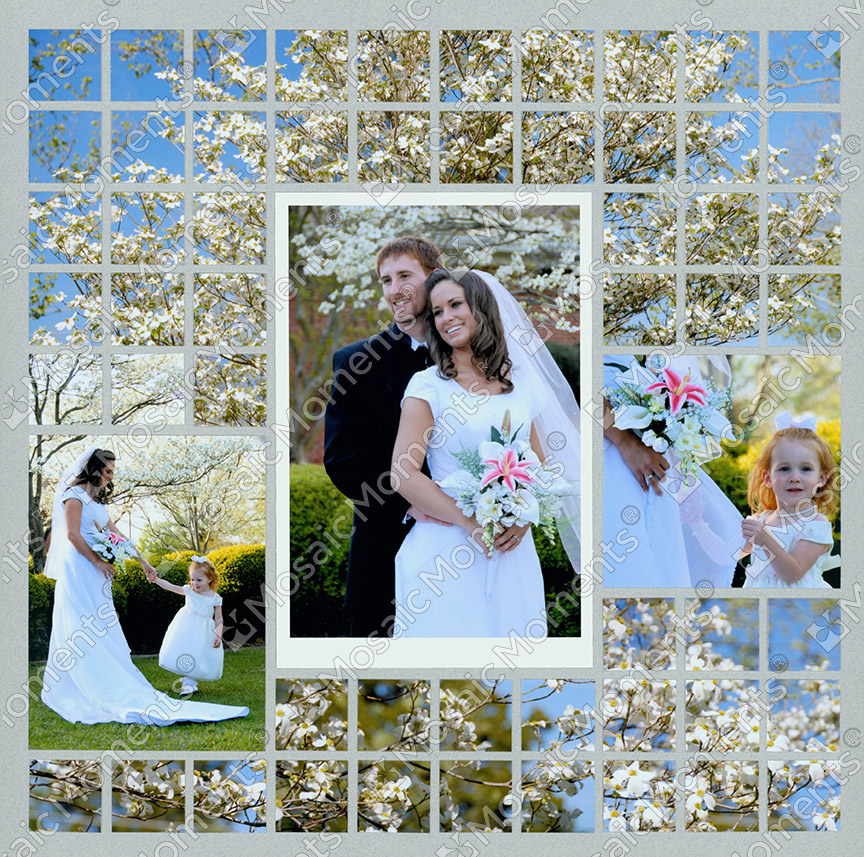
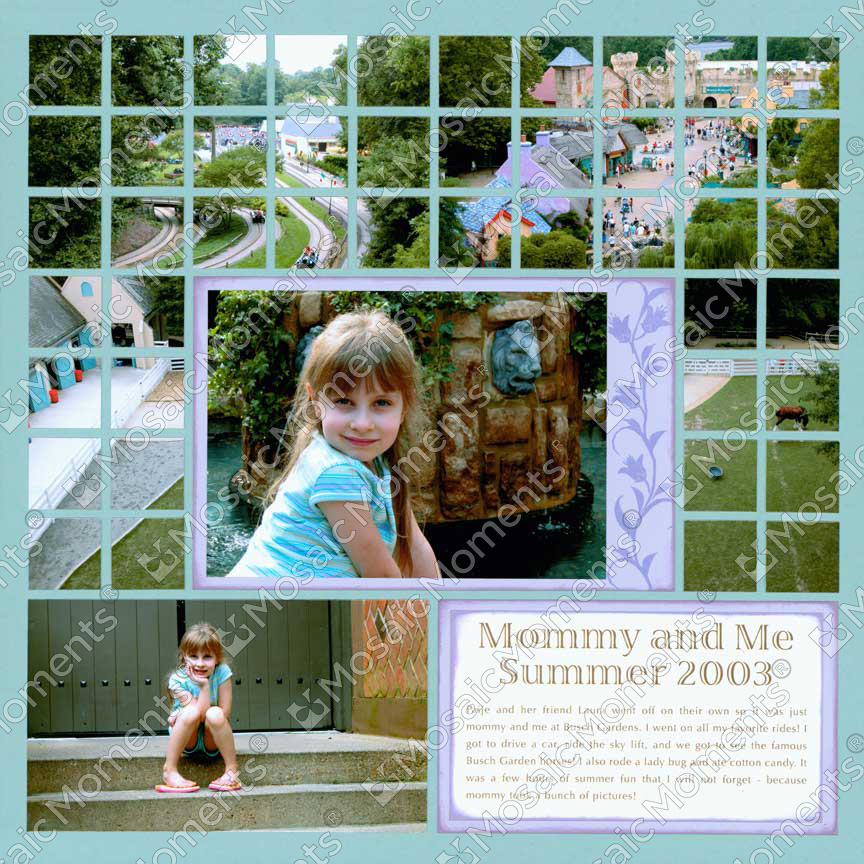
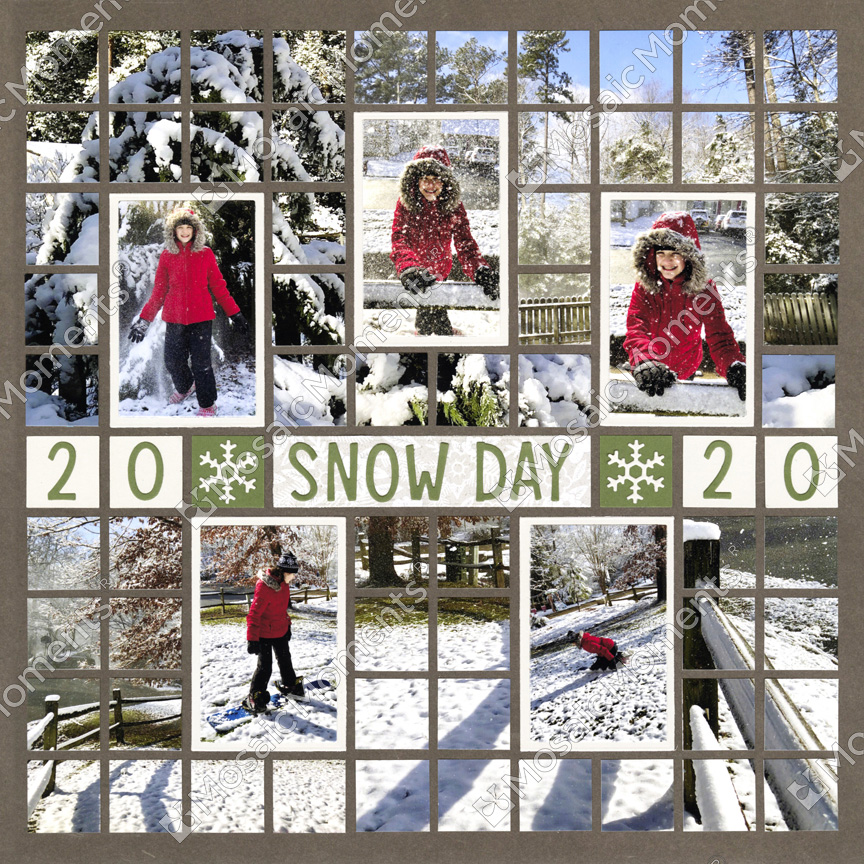
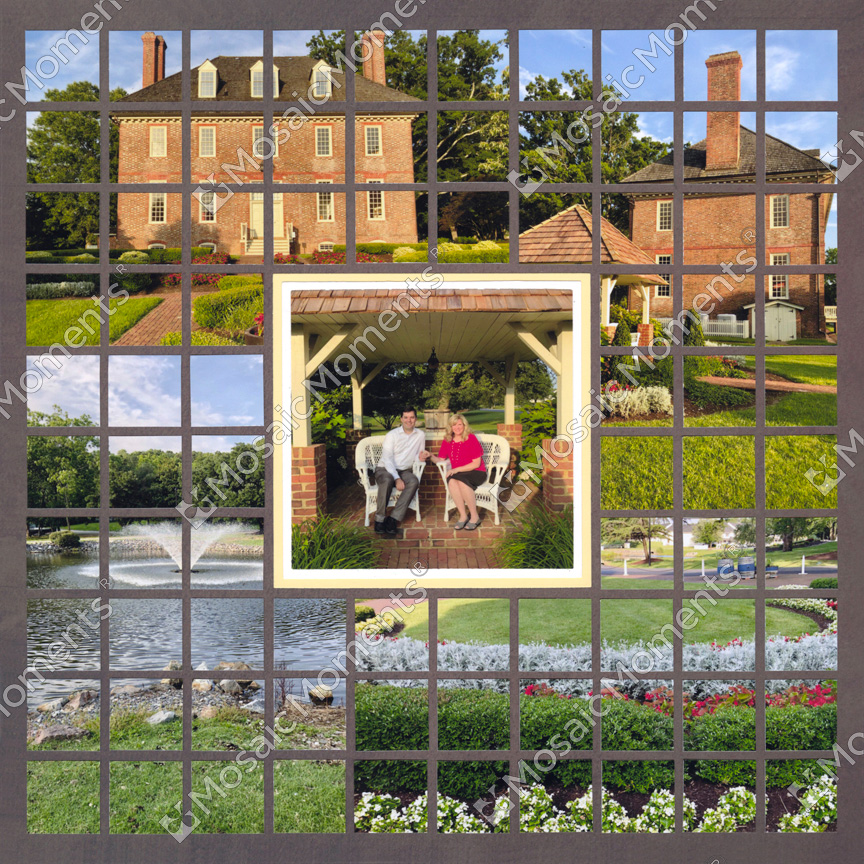
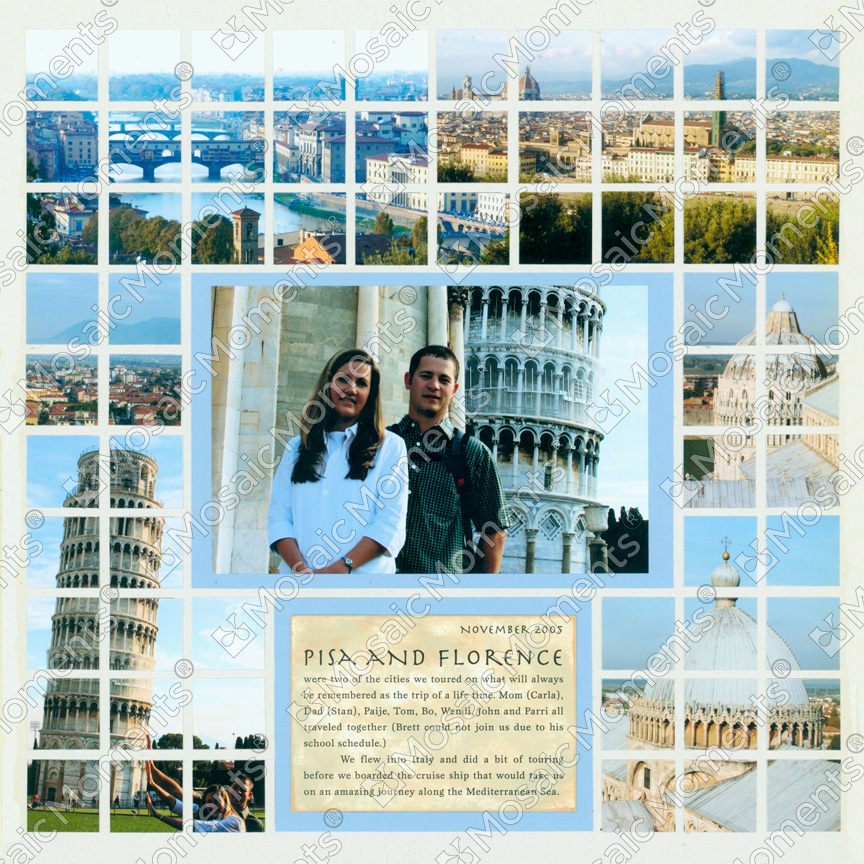
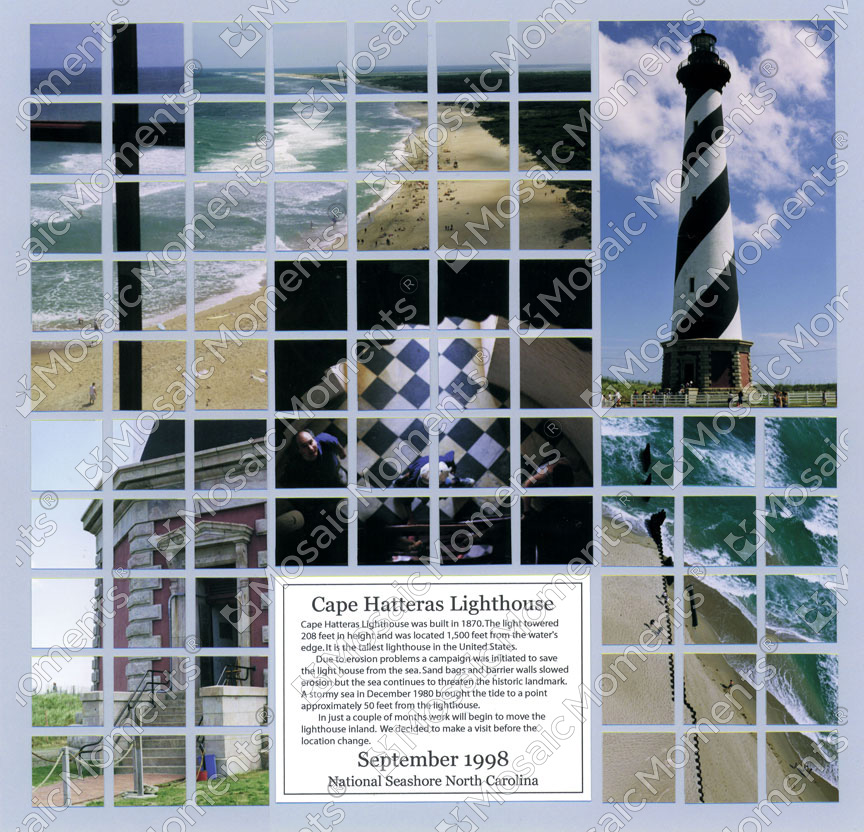
When creating a mosaic with the blending technique, you can cut the main subject into a larger block and the rest of the photo can be 1x1 squares.
This method works well if you want to highlight specific parts of the photo or if any object would look awkward cut into square pieces.
More Mosaic Page Ideas
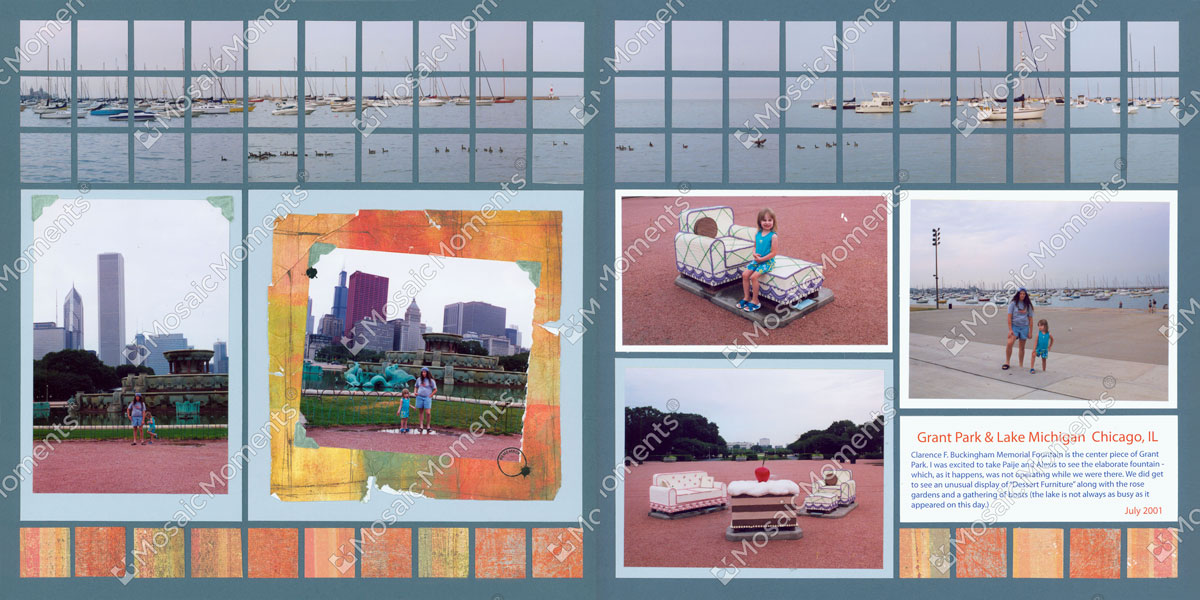
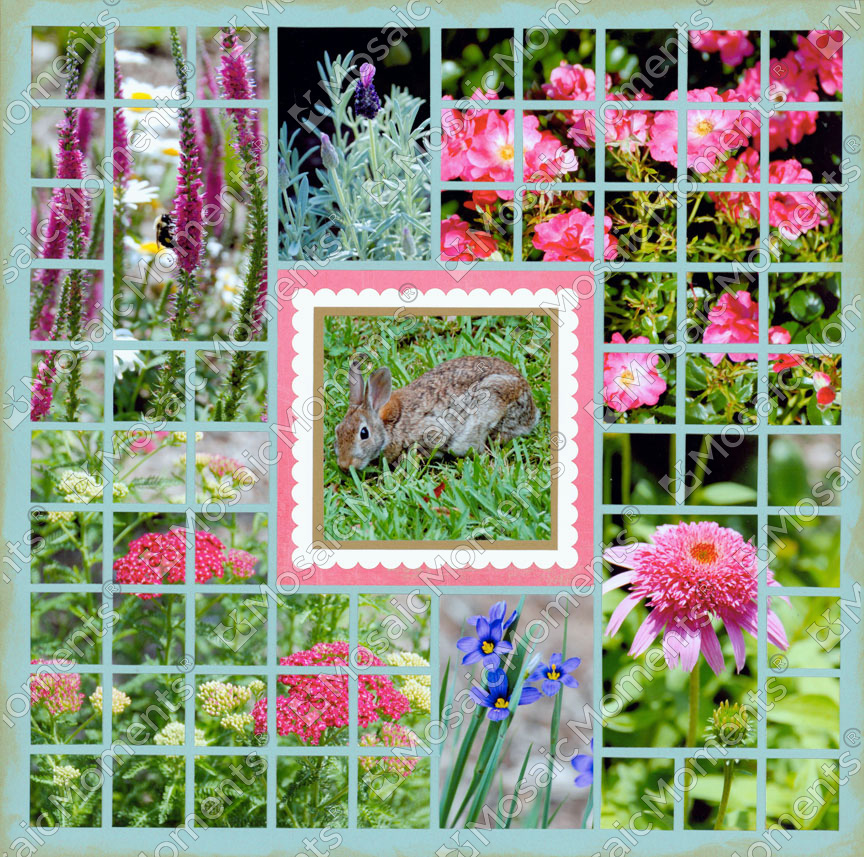
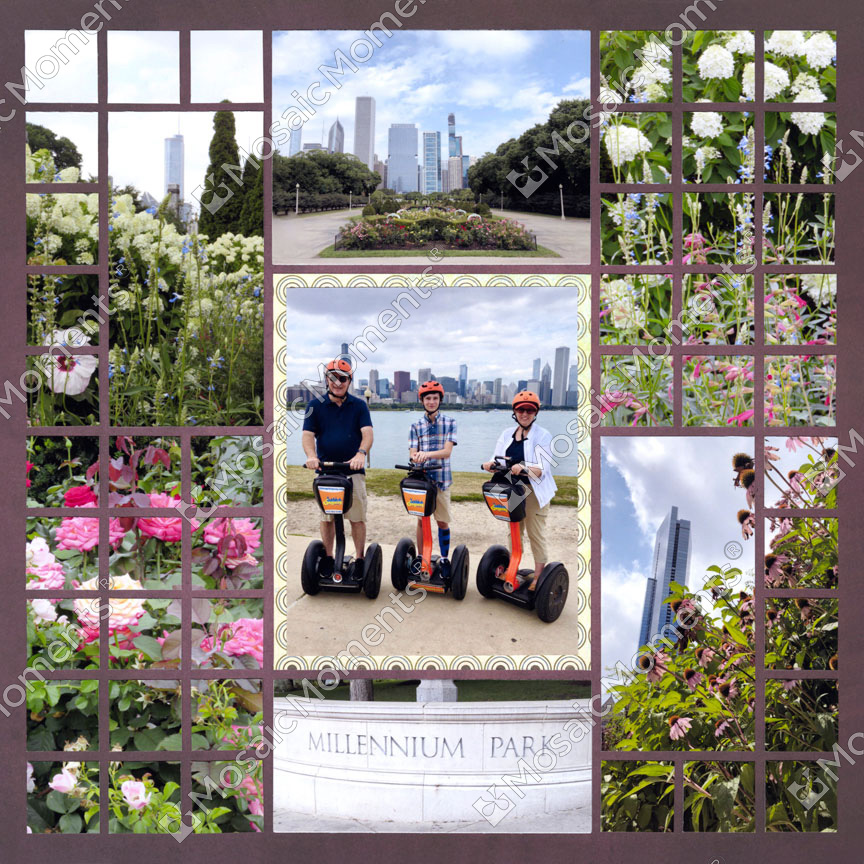
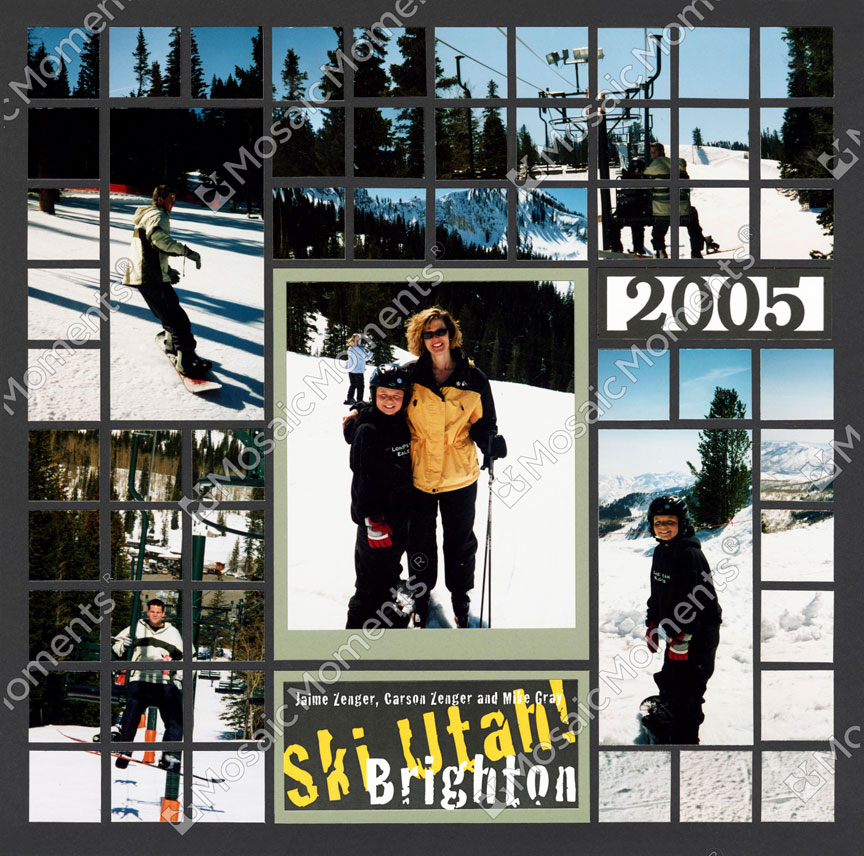
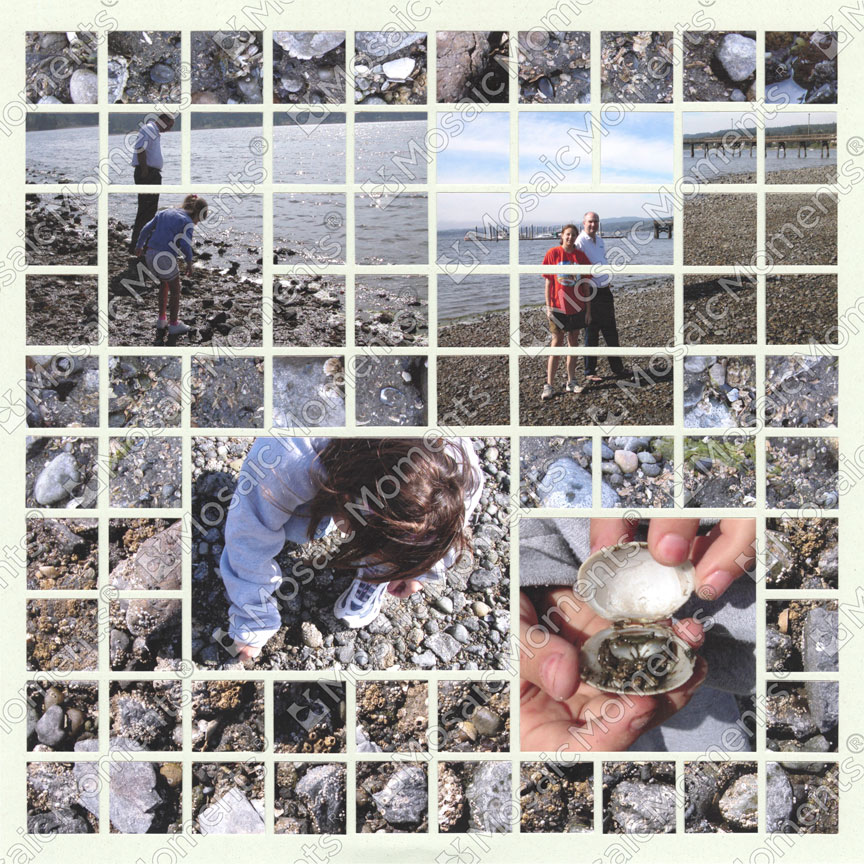
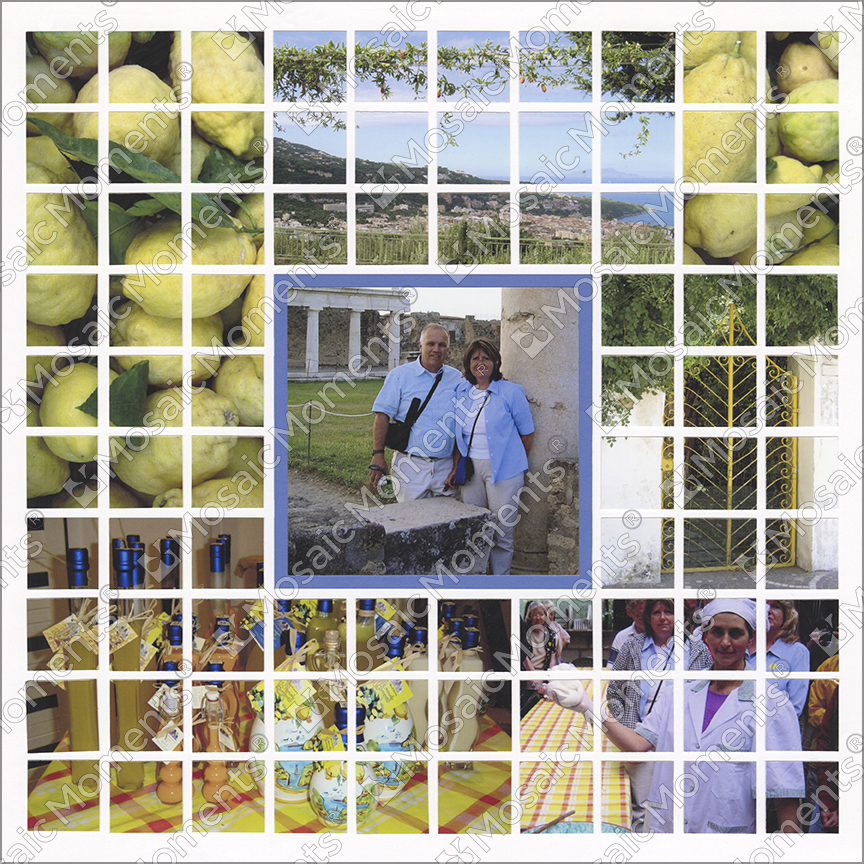
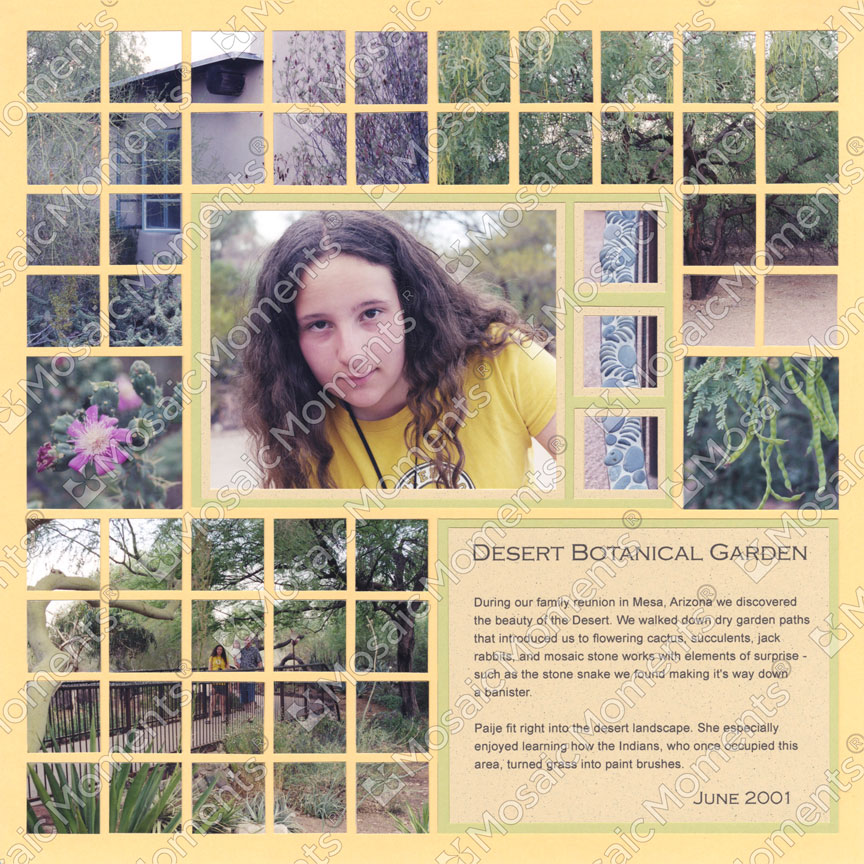
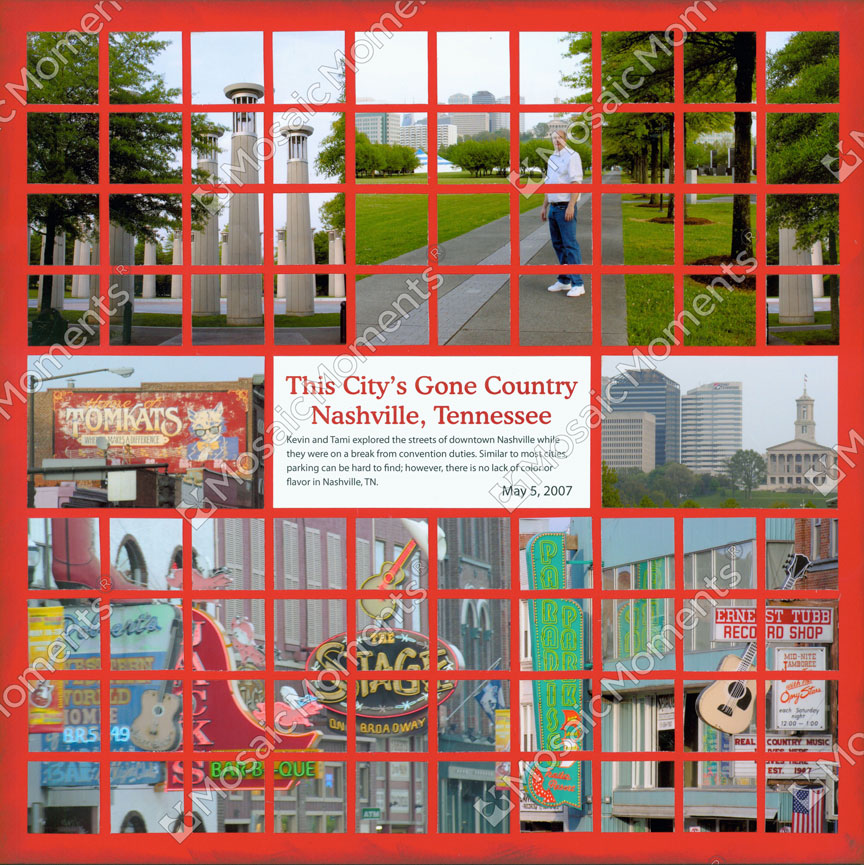
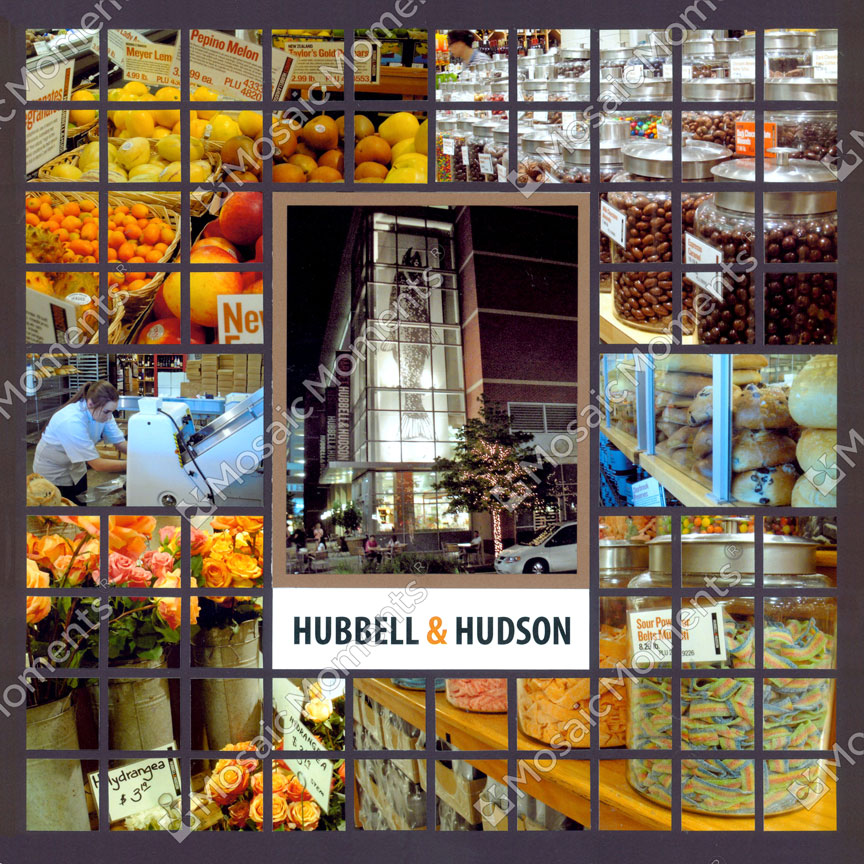
You don't have to do the blending technique to create a mosaic. You can get some of your favorite photos, cut them into 1x1 squares and make a wonderful collage with them!
Two Page Spreads with Mosaics